

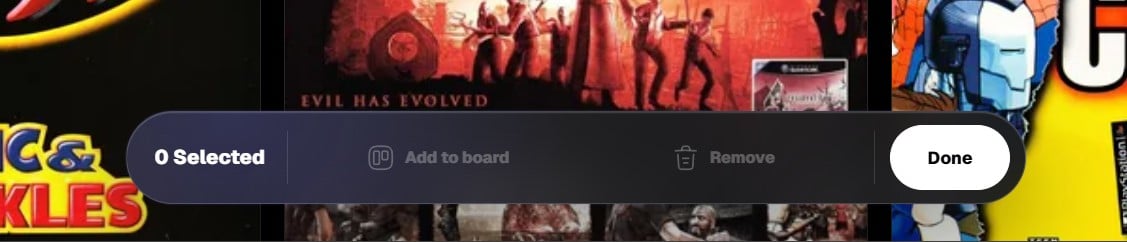
Enter organize mode
Click Organize references in the top right of the Board screen. When organize mode is active, Grafite changes the board into a selection and arrangement mode. This lets you manage references without opening each image one by one.Select references
Click a reference to select it. You can select one or multiple references before choosing an action. Selected references are visually marked so you can clearly see what will be affected. Use selection when you want to:- Move several references to another board.
- Remove multiple references from the current board.
- Review a smaller group inside a larger board.
Drag and drop to reorder
You can drag references to rearrange them inside the board. This is useful when you want to control the visual flow of a moodboard. For example, you might place broad inspiration first, then details, colors, materials, poses, lighting, or final direction references later. To reorder references:- Enter Organize references mode.
- Drag a reference image.
- Drop it into a new position.
- Grafite saves the new order for that board.
Move references to boards
You can send selected references to another board. This helps when one image fits more than one idea, or when you want to split a large board into smaller directions.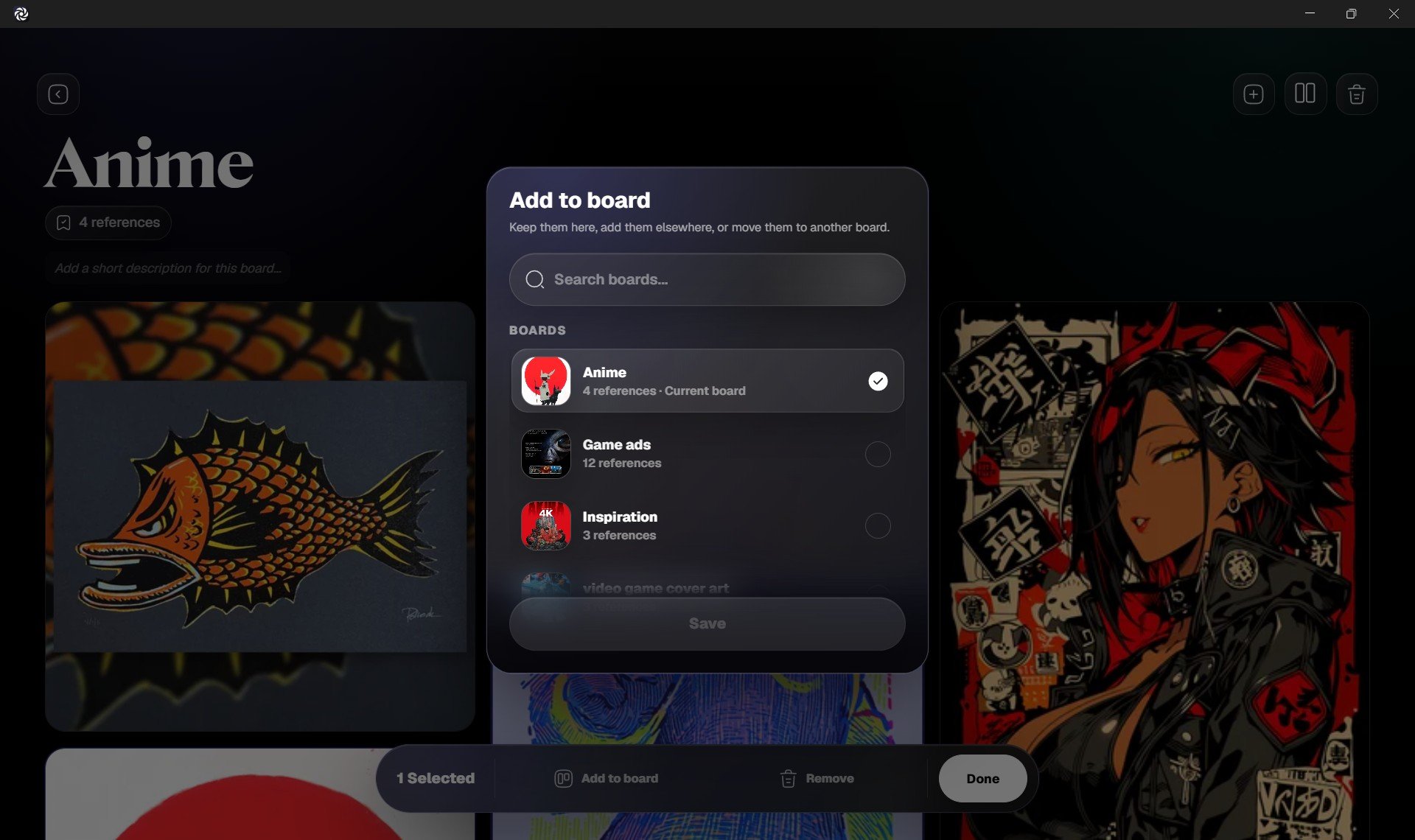
- Add selected references to an existing board.
- Create a new board from selected references.
- Keep the references in the current board.
- Move them out of the current board if you no longer want them there.
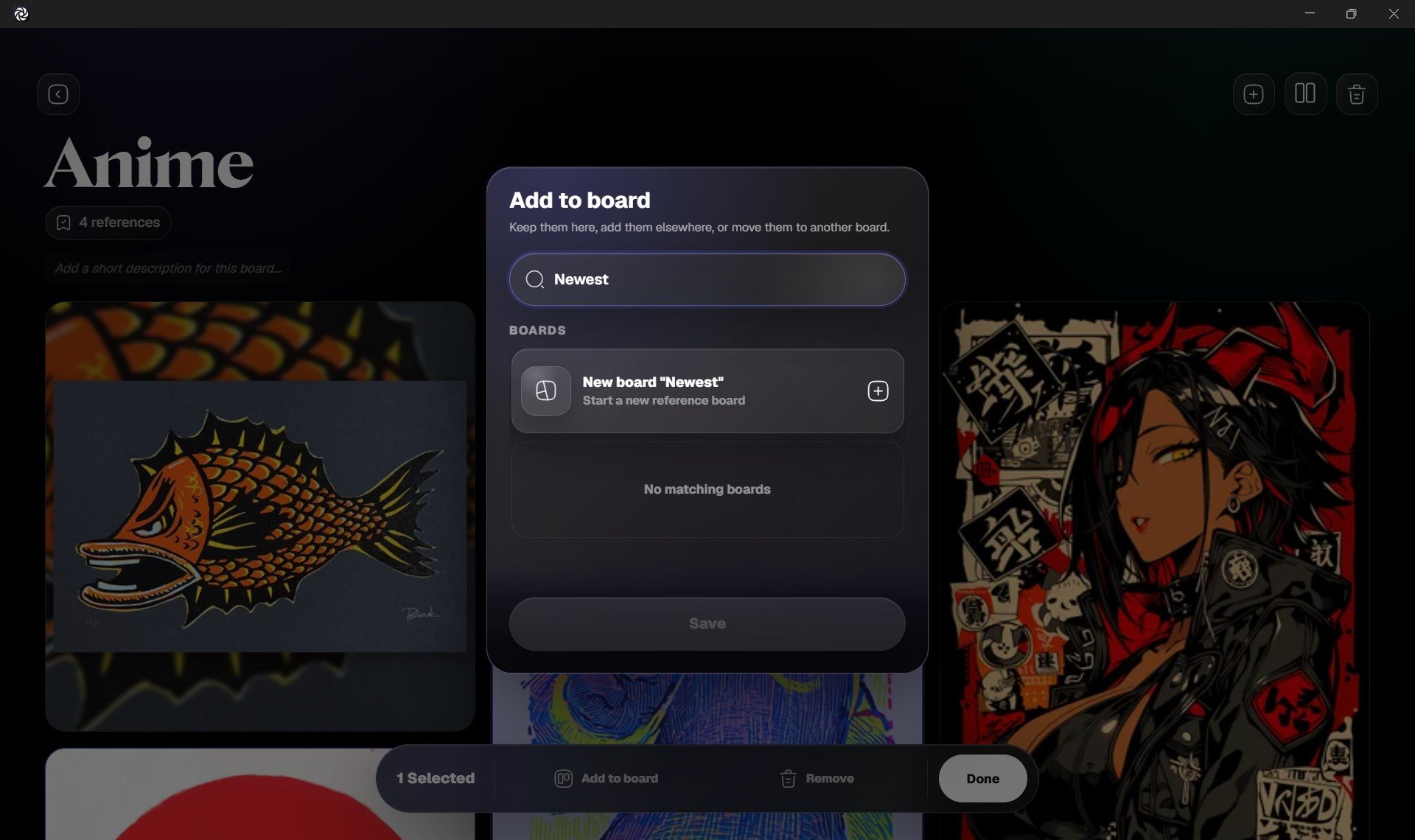
Remove references
You can remove selected references from the board. Use this to clean up images that no longer match the direction of the board. Removing a reference from a board does not always mean the image disappears everywhere. If that reference is used in another board, it can remain available there. If it only exists in this board, removing it may remove it from your Grafite library.Finish organizing
When you are done, click Done to leave organize mode. Your board returns to its regular browsing mode, where clicking a reference opens it in Focus View.Tips
- Put the strongest references near the beginning of a board.
- Group similar images together so the board is easier to read.
- Place detail shots near the larger images they support.
- Use separate boards when one moodboard starts becoming several different ideas.
- Remove weak or repeated references so the board stays clear.