

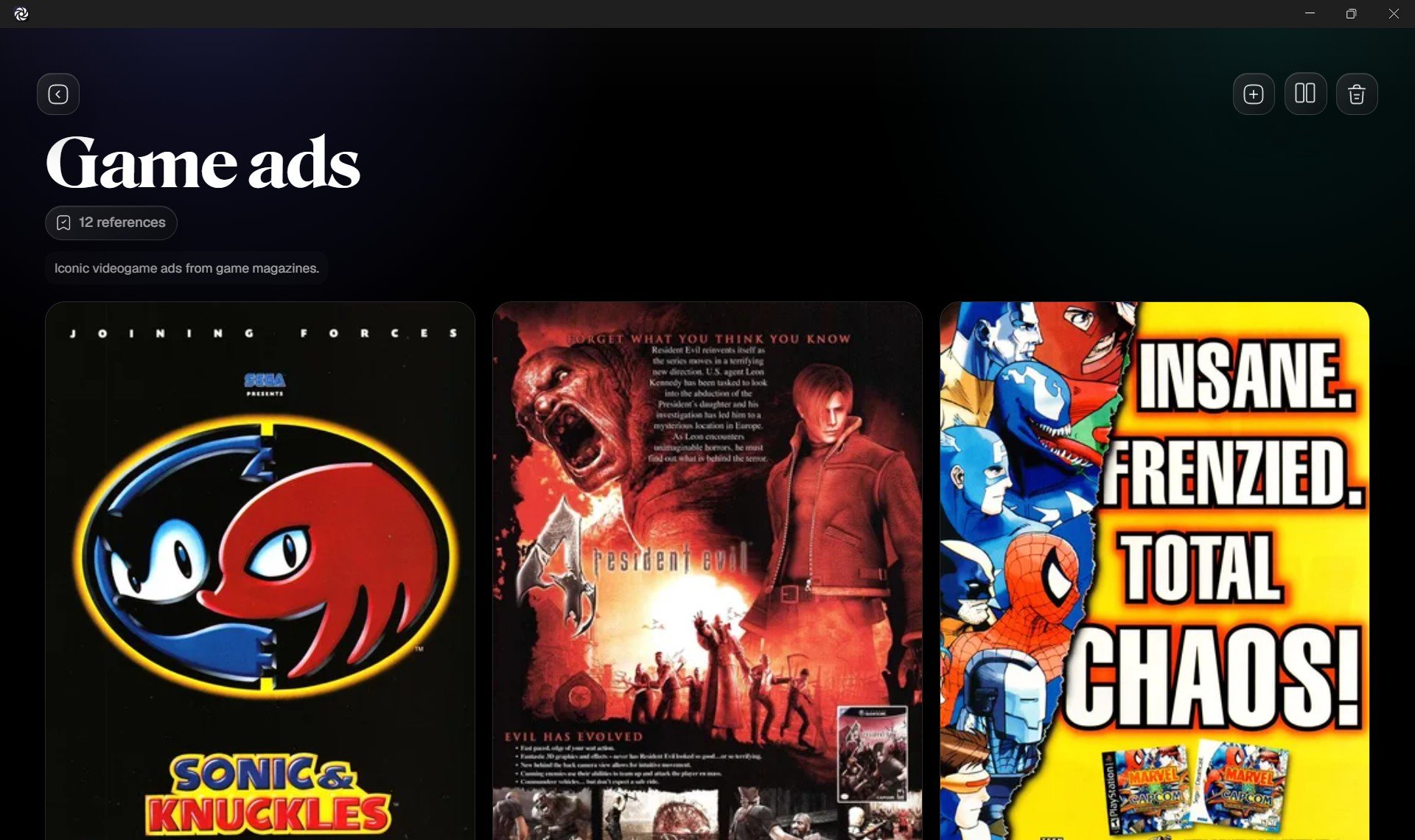
The Board screen is where you manage one moodboard. A board can hold reference images for a project, style, subject, scene, character, product, or visual direction. From here, you can add images, review references, organize their order, and delete the board if you no longer need it.
Board

Main Actions

  1. Add images lets you bring new reference images into the current board.
  2. Organize references lets you select, move, or remove references.
  3. Delete board removes the current board from Grafite.

Add Images

Use Add images to import reference images into the open board. You can add images in two ways:
  1. Click Add images and choose image files from the Windows file picker.
  2. Copy an image from the web, another folder, or another app, then paste it into Grafite with Ctrl + V.
Grafite adds supported image files to the current board and stores them in your local Grafite library.

Organize References

Use Organize references when you want to manage several references at once. When organize mode is active, you can select references on the board and use the action bar to work with them.

Organize Menu

The Organize references menu controls how references are shown on the board.
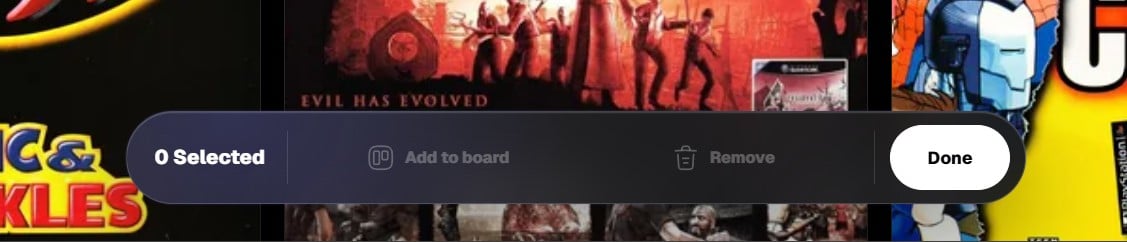
Organize References Board
Depending on the current board state, you can use this menu to change the reference order or enter organize mode.

Delete Board

Use Delete board when you no longer need a moodboard. Grafite asks for confirmation before deleting a board. Deleting a board removes that board from your library. References that only belong to that board are removed with it. References that are also used in other boards can remain available there.