
Documentation Index
Fetch the complete documentation index at: https://help.grafite.app/llms.txt
Use this file to discover all available pages before exploring further.
Basic gestures
If you are using Grafite on a touch screen, this is the simple rule: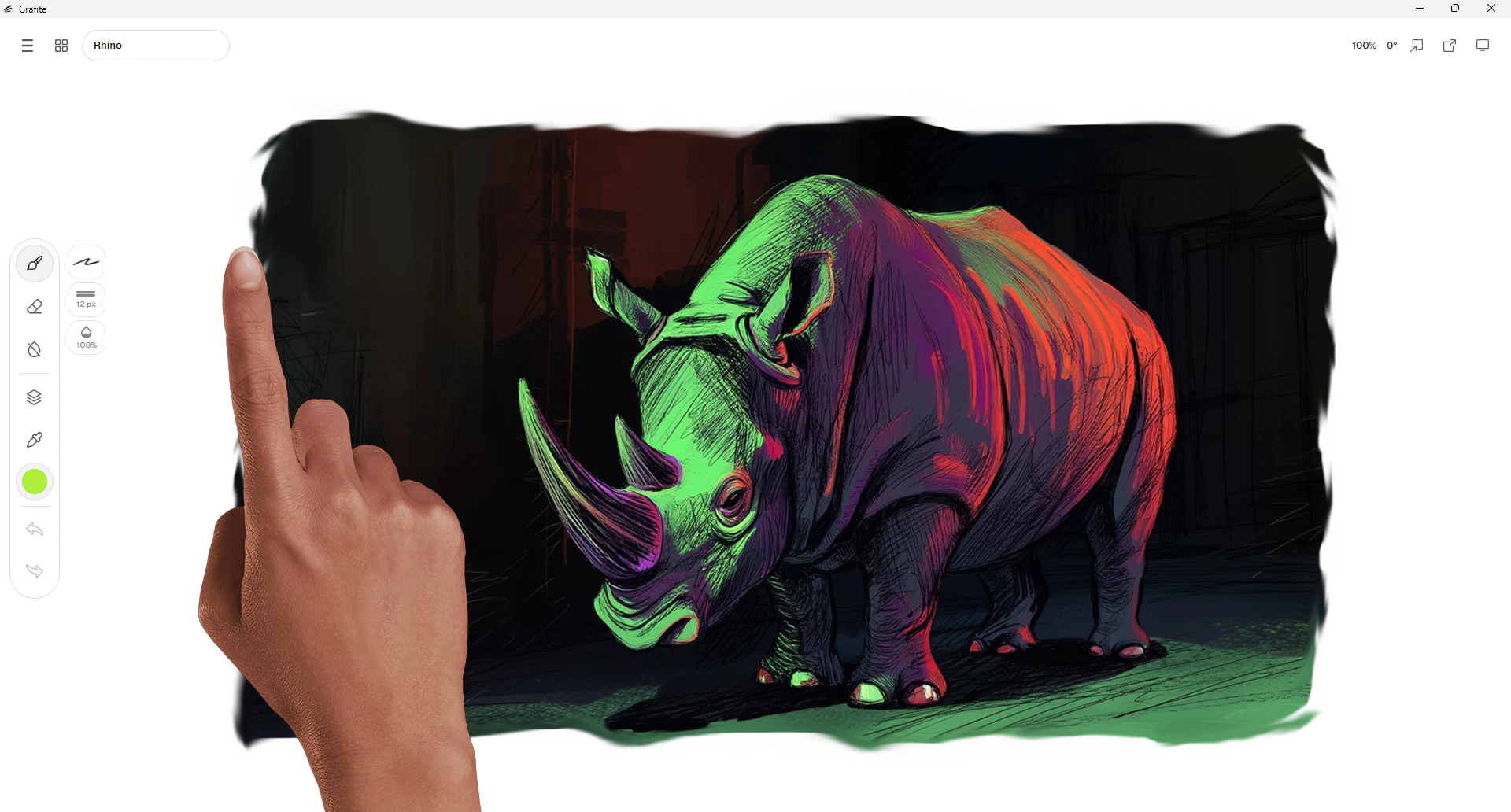
- Tap buttons to open menus and panels.
- Tap options inside panels to choose them.
- Touch and drag on the canvas with one finger to pan.
- Use two fingers on the canvas to pan, zoom, and rotate.
How touch users open the little extra menus:
File,View,Import,Export, andCanvas: tap the button once.Brushes,Eraser,Layers, andColors: tap the button once.Colorsextra options: tap the smallMore optionsbutton at the top-right of the Colors panel.Canvaspresets: tapPresets.Layeractions: tap the three-dots button on a layer row, or long-press the layer row itself.
Touch-only helpers:
- To move an already placed imported image, press and hold on the image, then drag it.
- To edit canvas width or height on touch, press and hold on the
WorHfield. - To reorder layers on touch, press and hold a layer row, then drag it.
Important touch note:
- Removing a draft palette swatch is right-click-only in the current build, so there is not a special touch remove gesture for that action yet.