> ## Documentation Index
> Fetch the complete documentation index at: https://help.grafite.app/llms.txt
> Use this file to discover all available pages before exploring further.
# Search References
> Find references by name, tag, board, and color.
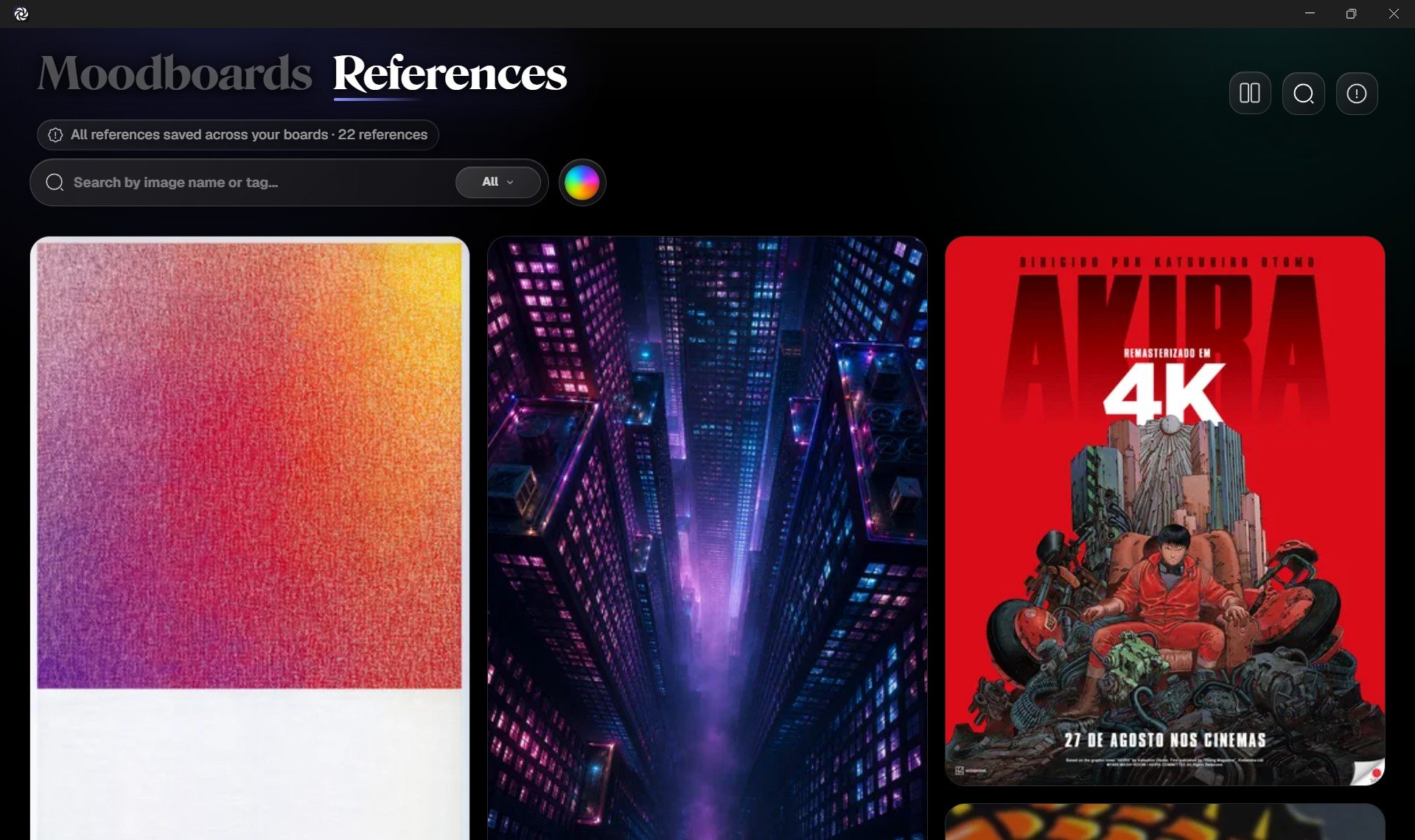
Search helps you move through a large reference library without losing the visual browsing experience.
 ## Search by name or tag
Type in the search field to find references by image name or saved tags.
This is useful when you remember what something is called, what project it belongs to, or a word you added as a tag.
Examples:
1. `armor`
2. `neon`
3. `portrait`
4. `materials`
5. `vehicle`
## Filter by board
Use the board filter to show references from a specific board.
## Search by name or tag
Type in the search field to find references by image name or saved tags.
This is useful when you remember what something is called, what project it belongs to, or a word you added as a tag.
Examples:
1. `armor`
2. `neon`
3. `portrait`
4. `materials`
5. `vehicle`
## Filter by board
Use the board filter to show references from a specific board.
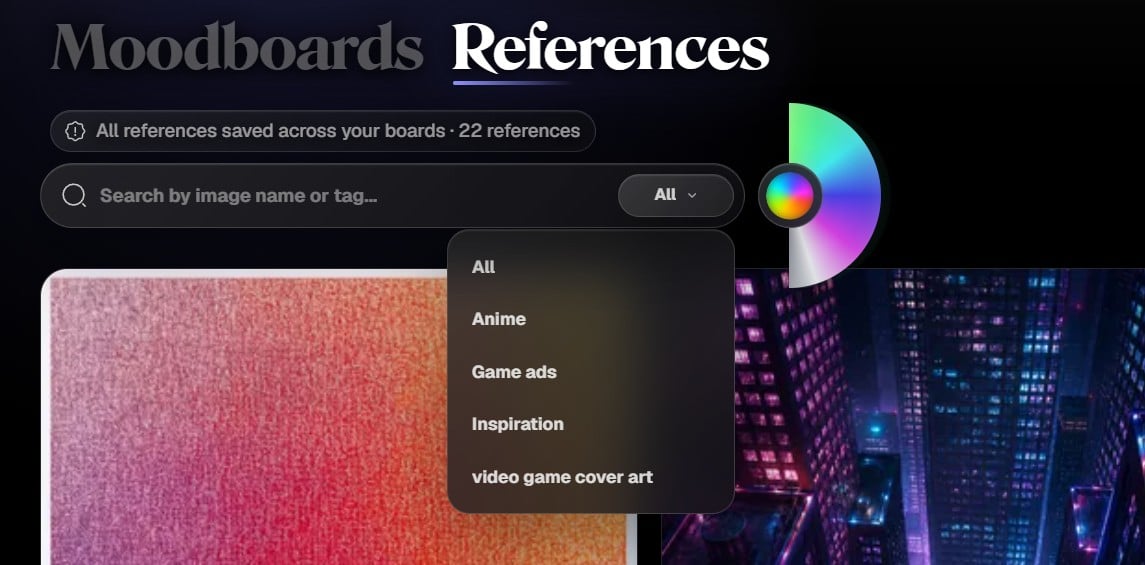 This helps when you want the flexibility of the References screen, but only want to see images connected to one project or visual direction.
## Filter by color
Use the color filter to browse references by color family.
This helps when you want the flexibility of the References screen, but only want to see images connected to one project or visual direction.
## Filter by color
Use the color filter to browse references by color family.
 This is useful when you are building a palette, looking for matching images, or trying to find references with a similar visual mood.
You can explore broad color families like red, orange, yellow, green, cyan, blue, violet, white, gray, and dark.
## Use the color wheel
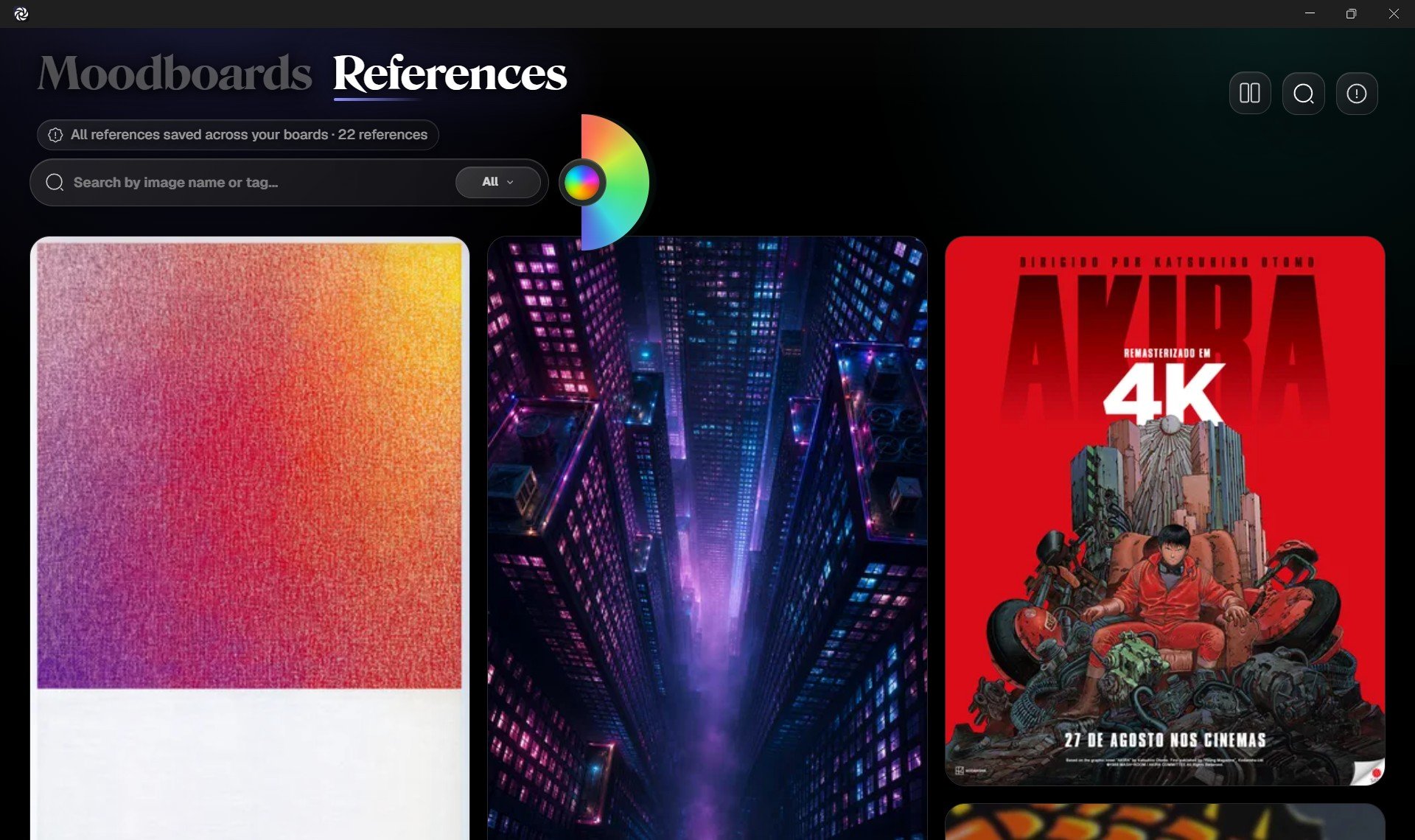
The color filter uses a half color wheel so you can browse references visually by hue.
Click the color button to open the wheel. Then move through the wheel to choose a color family.
You can use it in two ways:
1. Scroll with the mouse wheel to rotate through hues.
2. Drag or swipe by touch to slide through colors.
#### As you move through the wheel, Grafite updates the Reference Wall to show images that match the selected color family.
This is useful when you are building a palette, looking for matching images, or trying to find references with a similar visual mood.
You can explore broad color families like red, orange, yellow, green, cyan, blue, violet, white, gray, and dark.
## Use the color wheel
The color filter uses a half color wheel so you can browse references visually by hue.
Click the color button to open the wheel. Then move through the wheel to choose a color family.
You can use it in two ways:
1. Scroll with the mouse wheel to rotate through hues.
2. Drag or swipe by touch to slide through colors.
#### As you move through the wheel, Grafite updates the Reference Wall to show images that match the selected color family.
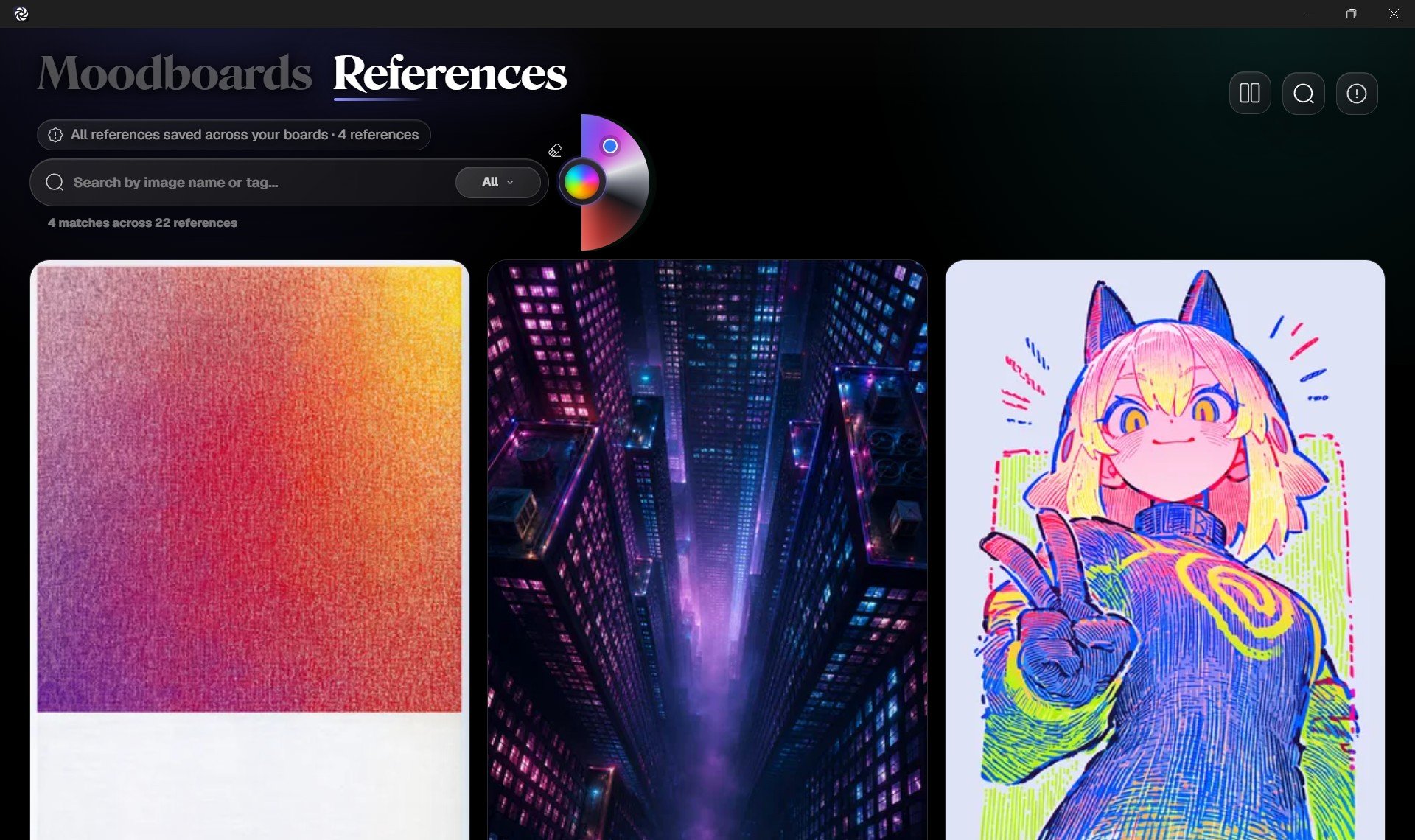 This is helpful when you do not know the name of what you are looking for, but you remember the mood or palette. For example, you can browse for warm orange references, cool blue images, dark compositions, bright whites, muted grays, or vivid accent colors.
The color wheel is made for visual searching: instead of typing a word, you can search by feeling, palette, and atmosphere.
## Combine filters
Search filters can work together.
For example, you can:
1. Search for `city`.
2. Filter to a specific board.
3. Narrow results to blue or dark references.
This helps you find very specific images inside a large library.
## Clear search
Use **Clear** to remove active filters and return to the full Reference Wall.
If no results appear, try a broader word, remove the board filter, or clear the color selection.
This is helpful when you do not know the name of what you are looking for, but you remember the mood or palette. For example, you can browse for warm orange references, cool blue images, dark compositions, bright whites, muted grays, or vivid accent colors.
The color wheel is made for visual searching: instead of typing a word, you can search by feeling, palette, and atmosphere.
## Combine filters
Search filters can work together.
For example, you can:
1. Search for `city`.
2. Filter to a specific board.
3. Narrow results to blue or dark references.
This helps you find very specific images inside a large library.
## Clear search
Use **Clear** to remove active filters and return to the full Reference Wall.
If no results appear, try a broader word, remove the board filter, or clear the color selection.