> ## Documentation Index
> Fetch the complete documentation index at: https://help.grafite.app/llms.txt
> Use this file to discover all available pages before exploring further.
# Overview
## Grafite is a visual library for your ideas.
You can create moodboards, import images, turn folders into boards, browse every saved reference, inspect images, add notes and tags, and organize your visual research in one place.
This help explains the main parts of the app in simple words.
# Home
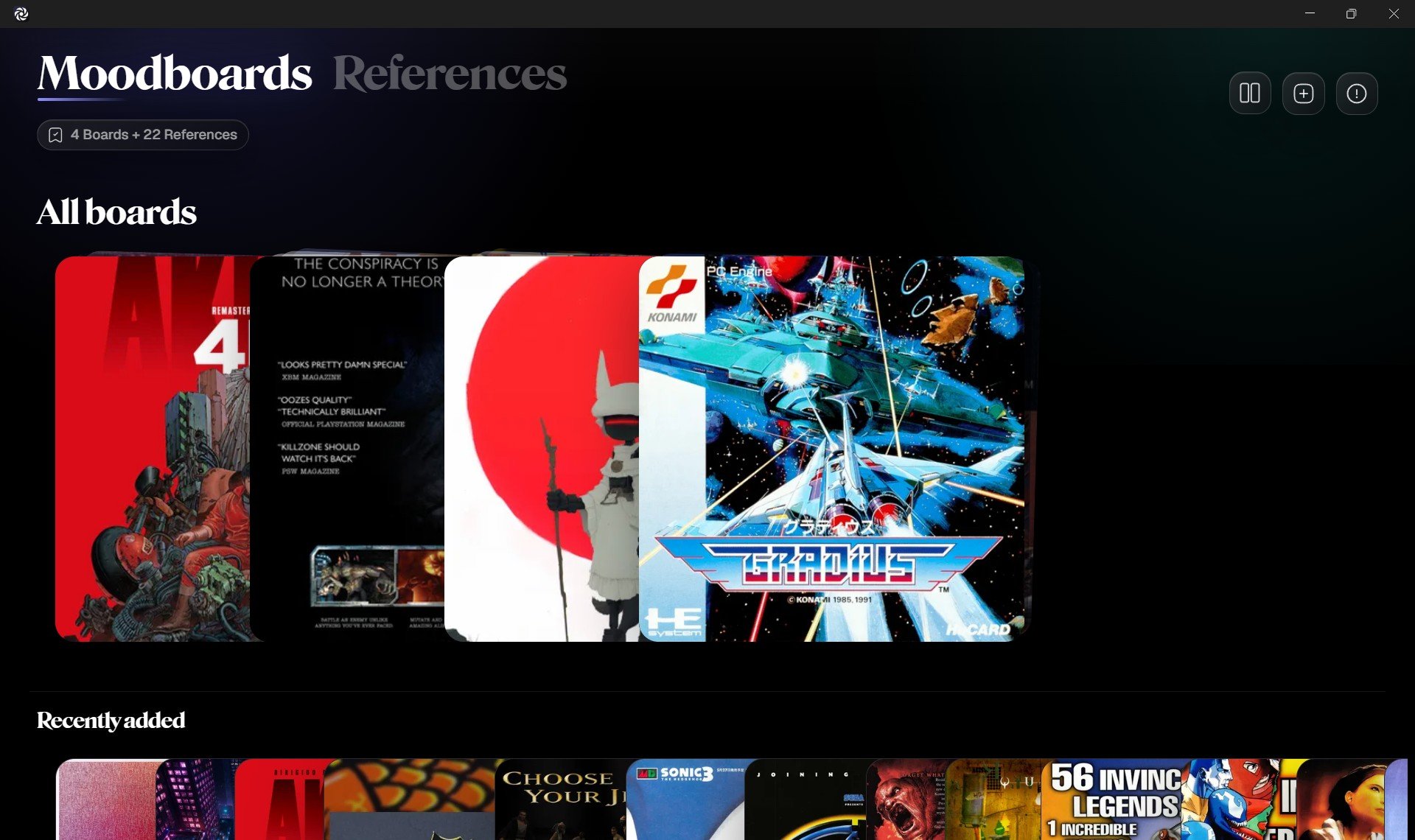 1. The top left shows the main sections: **Moodboards** and **References**.
2. **Moodboards** is where you see your boards. Each board can hold a group of reference images.
3. **References** shows all images saved across your boards in one visual library.
4. The top right has quick actions for organizing, adding boards, and opening **Info and help**.
5. The main area shows your boards or references, depending on the selected section.
# Moodboards
1. The top left shows the main sections: **Moodboards** and **References**.
2. **Moodboards** is where you see your boards. Each board can hold a group of reference images.
3. **References** shows all images saved across your boards in one visual library.
4. The top right has quick actions for organizing, adding boards, and opening **Info and help**.
5. The main area shows your boards or references, depending on the selected section.
# Moodboards
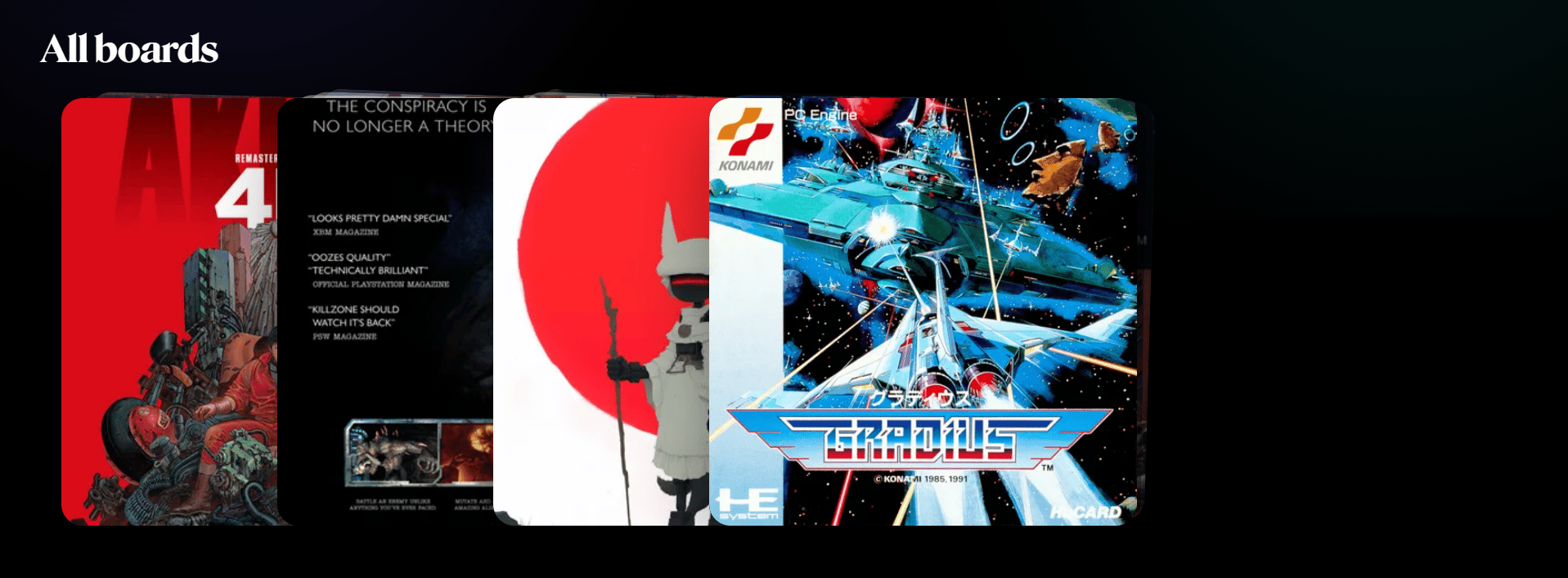 1. Each board is a collection of images around an idea, project, style, subject, or direction.
2. A board preview shows images saved inside it.
3. Use **Add board** to create an empty board, create a board from selected images, or import folders as boards.
4. Use **Organize boards** to change how boards are sorted.
5. Open a board to add, remove, reorder, rename, and review its references.
# References
1. Each board is a collection of images around an idea, project, style, subject, or direction.
2. A board preview shows images saved inside it.
3. Use **Add board** to create an empty board, create a board from selected images, or import folders as boards.
4. Use **Organize boards** to change how boards are sorted.
5. Open a board to add, remove, reorder, rename, and review its references.
# References
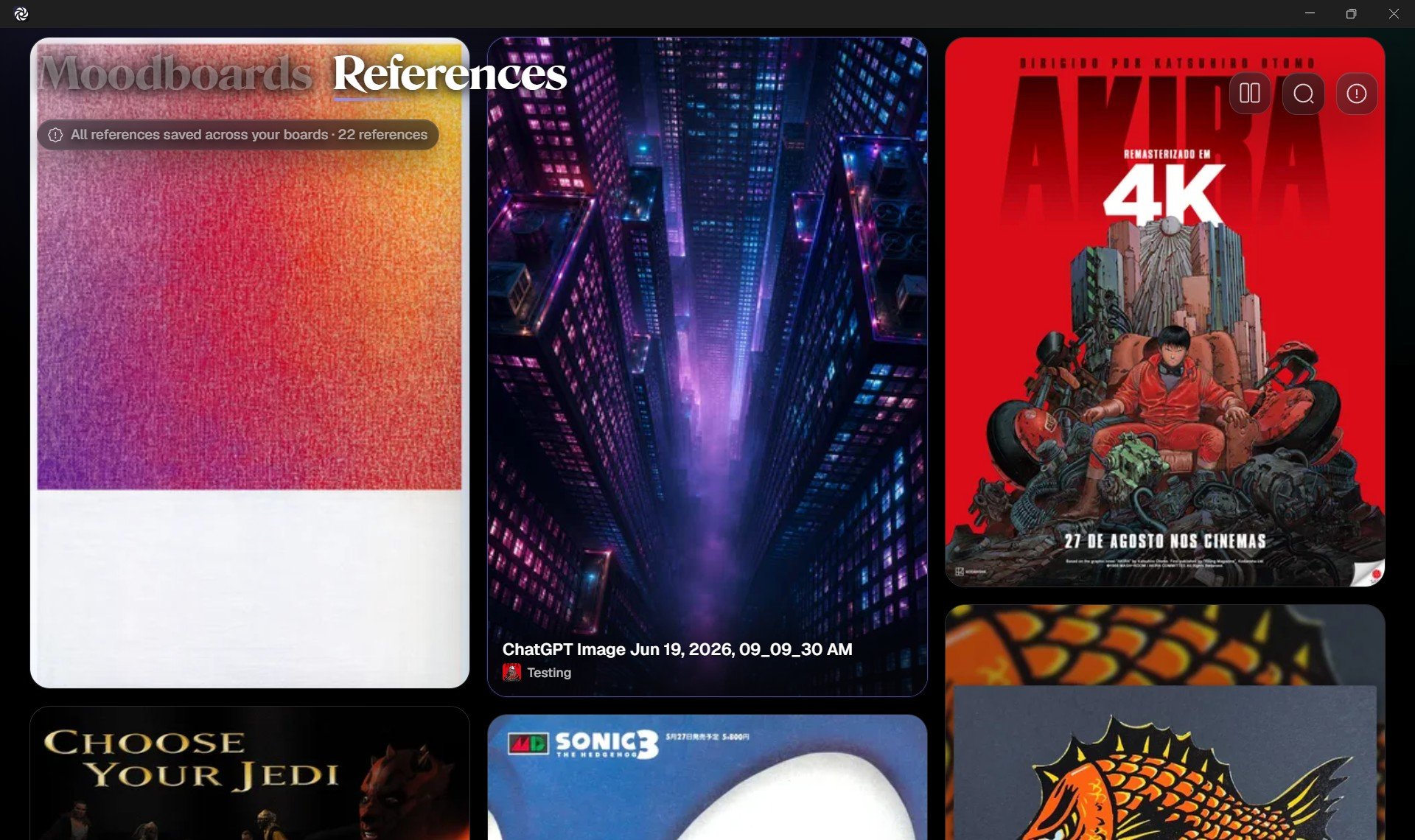 1. The **References** section shows every image saved across your boards.
2. Use search to find images by name or tag.
3. Use board filtering to show references from a specific board.
4. Use color filtering to browse references by visual color family.
5. Open any reference to inspect it in a focused view.
# Focus View
1. The **References** section shows every image saved across your boards.
2. Use search to find images by name or tag.
3. Use board filtering to show references from a specific board.
4. Use color filtering to browse references by visual color family.
5. Open any reference to inspect it in a focused view.
# Focus View
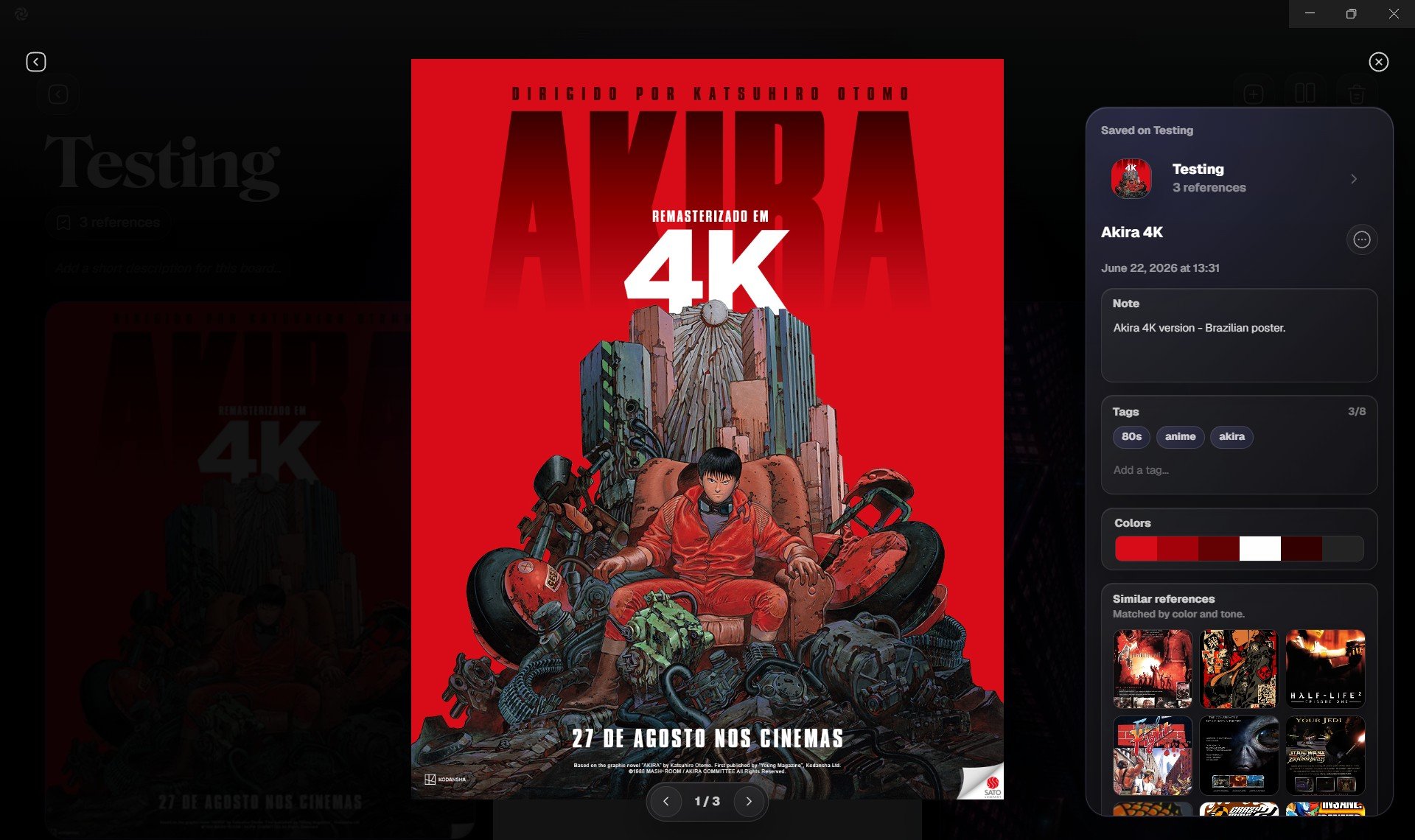 1. Focus View lets you inspect one reference image without the full library around it.
2. You can move between images, review board context, and return to your board or reference grid.
3. You can rename a reference, add notes, add tags, download it, or remove it from a board.
4. Grafite can show extracted colors from the image.
5. Grafite can suggest visually similar references from your library.
1. Focus View lets you inspect one reference image without the full library around it.
2. You can move between images, review board context, and return to your board or reference grid.
3. You can rename a reference, add notes, add tags, download it, or remove it from a board.
4. Grafite can show extracted colors from the image.
5. Grafite can suggest visually similar references from your library.